.svg)


.png)
.png)


.svg)





.png)

.png)

How to Replace Email and Shared Drives for Construction Document Sharing (2026)
Replace email and shared drives with a construction CDE. Learn how to control versions, permissions, approvals, transmittals, and project records.


Key Takeaways
- Email and shared drives can store or send files, but construction teams also need controlled revisions, formal distribution, permissions, and a traceable project record.
- A common data environment gives teams one governed place to collect, manage, review, issue, and retain construction information.
- Document status should show whether information is in progress, shared for coordination, authorized for a defined use, or superseded.
- Role-based access lets owners, consultants, subcontractors, and field teams reach the information required for their work without exposing the entire project.
- A phased migration should identify the record copy, move current information first, set a firm cutover date, and stop treating email attachments as controlled documents.
- CUBE connects document management, revision tracking, reviews, transmittals, permissions, and activity history in one project environment.
Email attachments and generic shared drives make files available, but availability does not indicate which copy is current or how it may be used. For instance, a drawing named ‘final-v2’ can sit beside a later issue, or an approval can remain trapped in an email thread. At times, a subcontractor downloads a document without creating a clear distribution record.
This fragmented process can be replaced with a common data environment (CDE). A CDE provides a single source of truth and governs document status, revisions, access, reviews, formal issues, and history. CUBE's CDE becomes the document-control record for your project: one controlled place for drawings, RFIs, submittals, specifications, approvals, transmittals, and handover information.
This article examines why email and shared drives provide fragmented information and access, and how CDE can help address the challenges that follow in their wake.
Why Email and Shared Drives Break Down on Construction Projects
Construction information changes throughout the design and delivery process. The system used to share it must show the current revision, its permitted use, its approval or review state, its recipients, and the revision it replaced. Email and generic folders rarely apply those controls consistently.
Common failure points include:
- Duplicate copies circulate without an authoritative status.
- Approval comments become separated from the exact file version reviewed.
- Field teams reopen downloaded drawings after a newer issue has been released.
- Broad folder access exposes information beyond a user's assigned package.
- Distribution history must be reconstructed from inboxes, filenames, and individual recollection.
- Handover folders contain active records, drafts, duplicates, and superseded files, with no clear distinction between them.
The need for better information governance extends beyond any single project. In the 2024 report The State of Data Capabilities in Construction, Deloitte Access Economics surveyed approximately 1,275 construction professionals across 12 countries and found that more than 80% of construction companies still had room to improve their data capabilities. Autodesk commissioned the study, so its commercial context should be considered when interpreting the findings.
Watch out:
Access does not prove controlled issue. A user may be able to open a file without knowing whether it is a draft, a coordination copy, an authorized construction issue, or a superseded record.
What to Use Instead: A CDE With Document Control
A CDE provides a managed process for project information. ISO 19650-1 describes an information management framework that covers the exchange, recording, versioning, and organization of information throughout the built asset life cycle. Project teams apply that framework through agreed responsibilities, status rules, naming conventions, review processes, permissions, and technology.
A practical construction CDE should help your team:
- Keep documents and their revision history together.
- Separate work in progress from information shared or issued for a defined purpose.
- Route files through the required review and approval steps.
- Distribute controlled versions through recorded transmittals.
- Limit access by role, project, folder, file, or work package where supported.
- Preserve previous revisions without showing them as current working information.
- Maintain an activity history that supports audits, claims review, and handover.
With CUBE's Common Data Environment, you can centralize project information in one governed repository with nested folder structures, set granular access for each user or group, and track every version with timestamps and the uploader's identity.
CUBE's Transmittals module handles controlled distribution from one Space to another, recording the source and destination Space, recipients, subject, message, sender and date. The Reviews module manages approvals through configurable levels, statuses and transition diagrams.
The platform supports 60+ browser-viewable formats, including BIM, CAD, PDF, spreadsheets, images, and documents so that teams can open files without specialized software.
Suggested Read: How to select the right construction management software?
Shared Drives vs. a Construction CDE: What Is the Difference?
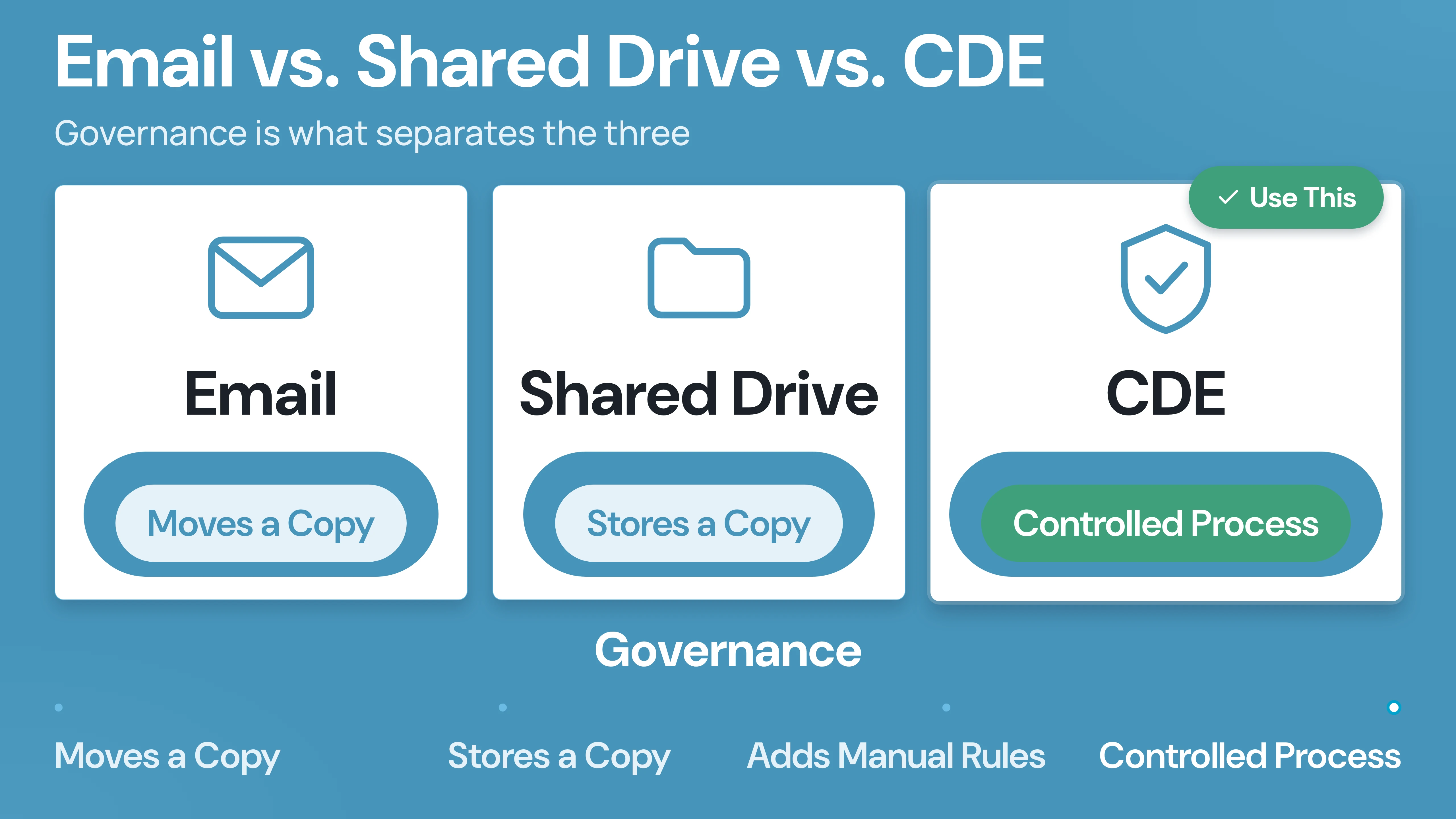
The main difference between a shared drive and a construction CDE is governance. Email moves a copy, but a shared drive stores a copy. A CDE can place the information inside a controlled process with defined status, permissions, revision history, review activity, and distribution records.
How to Replace Email and Shared Drives in Six Steps
A live project cannot pause while all historical files are cleaned. Move in controlled phases, beginning with the documents that affect active work and near-term decisions.
Step 1: Inventory Active Documents and Information Flows
Create a document register showing what the project shares, where each record currently lives, who owns it, and who needs it. Include drawings, models, specifications, RFIs, submittals, transmittals, contracts, site records, photos, closeout manuals, and record drawings.
Separate current working information from historical material during the inventory. Do not migrate every duplicate merely because it exists. Where copies conflict, the document owner or controller should identify the authoritative revision before migration.
Record at least the following fields:
- Document number and title
- Discipline or information type
- Current revision and status
- Record owner
- Current location
- Required reviewers and recipients
- Retention or handover requirement
Step 2: Define Ownership and the Record Copy
Assign an owner for every document type and declare what counts as the official project record. The CDE record should carry the agreed revision, status, and issue history. An emailed or downloaded copy remains a convenience copy and must be checked against the controlled record before use.
A simple ownership model might assign drawings and models to the design manager, the document register and transmittal process to document control, contractual records to the project manager, and field verification to the superintendent. Adapt those responsibilities to the contract and project information-management plan.
CUBE supports this ownership model with role-based permission controls at the Space level. Portal-level roles and custom roles can be created with specific permissions. The Activity Logs in Portal Settings record every user action, including the user's name, date, and timestamp, ensuring that ownership and accountability are documented.
Check out CUBE’s features.
Step3. Configure Statuses, Metadata, and Naming Rules
Use status to communicate permitted use. Folder location alone is too easy to misread. A project may use states such as work in progress, shared for coordination, published or issued for a defined purpose, and superseded or archived. The contract and project procedures should define the exact labels and their consequences.
Apply metadata that helps users identify and filter the right record, including document number, discipline, revision, status, suitability or purpose, package, originator, and issue date. Naming conventions should support those controls rather than replace them.
Use CUBE to define the separator and fields, including character limits, so every file automatically follows a consistent naming pattern. Configure revision series in Portal Settings with start patterns, sequence rules, and default behaviors, then set one as the portal-wide default, assign it to a folder, or override it on an individual file. Custom Fields templates can be associated with folders, so every file inherits the metadata fields that matter to your project.
Step 4. Set Permissions by Role and Work Package
Map what each role can upload, revise, review, approve, issue, view, download, or archive. Keep administrative rights limited, and give external organizations access to the packages required for their scope.
Avoid building the permission model around individual names wherever practical. Role-based access is easier to review when people join, change responsibilities, or leave the project. Apply expiration and closeout rules to external access, and test the experience using representative accounts before launch.
CUBE supports granular access at the Space, folder, and file level, with six access levels: No Access, Can View, Can Download, Can Edit, Can Update Version, and Full Access. These permissions are additive, with the maximum level being Full Access. You can also create Portal-level roles and custom roles with specific permissions.
Groups can be created in Portal Settings and added to Projects via Project Settings. For every 10 paid CDE, Project Management, or Digital Twins seats, CUBE includes 10 Guest, 10 Field, and 10 Operator seats at no extra cost, so subcontractors, site teams, and operators can join the project without every user needing a full license.
Step 5: Add Revision, Review, and Distribution Rules
Define the checks required before information changes state. Work-in-progress files may need an internal quality check before sharing. Shared information may require discipline coordination. A document intended for construction may require contractual authorization before it is formally issued.
Each new issue should create a traceable sequence:
- Upload or create the revision.
- Complete the required review and authorization.
- Update its status and metadata.
- Issue the approved version through a transmittal.
- Mark the previous revision as superseded.
- Notify affected parties and complete any required acknowledgment or field check.
CUBE provides configurable Review workflows that let you set levels with conditions, assign reviewers per level, configure statuses and transitions with a visual Transition Diagram, and allow rollback, bypass, or file updates at each level. The activity log records every stakeholder action.
CUBE Transmittals support controlled file distribution from one Space to another and to specific users, with remarks against each file, recipient notifications, and full traceability. Every transmittal records from which Space, to which Space, to which users, subject, body, sent by, and sent on. CUBE's notifications group alerts by type and state, and the Take Action tab shows overdue items and items due in the next 7 and 30 days across every project the user belongs to.
Step 6: Cut Over Active Distribution
Set a clear date after which the CDE becomes the record source for active project information. Communicate what changes on that date, including how users find current documents, how formal issues are sent, and how exceptions are escalated.
At cutover:
- Make legacy shared folders read-only where practical.
- Stop sending controlled documents as email attachments.
- Use CDE links or transmittals for formal distribution.
- Move current working sets before lower-priority archive material.
- Check that field devices display the controlled version.
- Track exceptions, retrain users, and quickly correct shadow workflows.
Email can remain a channel for notifications and discussion. The controlled file, review state, and issue record should remain in the CDE.
CUBE sends email and in-app notifications for Transmittals, Reviews and file updates. The Mailbox module lets you send formal project mail to CUBE users and, once your project mailbox is configured, to external contacts, with attachments, Space file references, tags, custom fields, and a response type (Acknowledge by or Reply by) with a due date. That way, email serves as a notification channel while the controlled record remains in the CDE.
How Permissions Should Work for Construction Teams
Permissions should follow responsibility and scope. The project's contract, delivery model, and internal controls determine the final matrix, but the following example provides a useful starting point.
How to Control Versions, Revisions, and Superseded Files
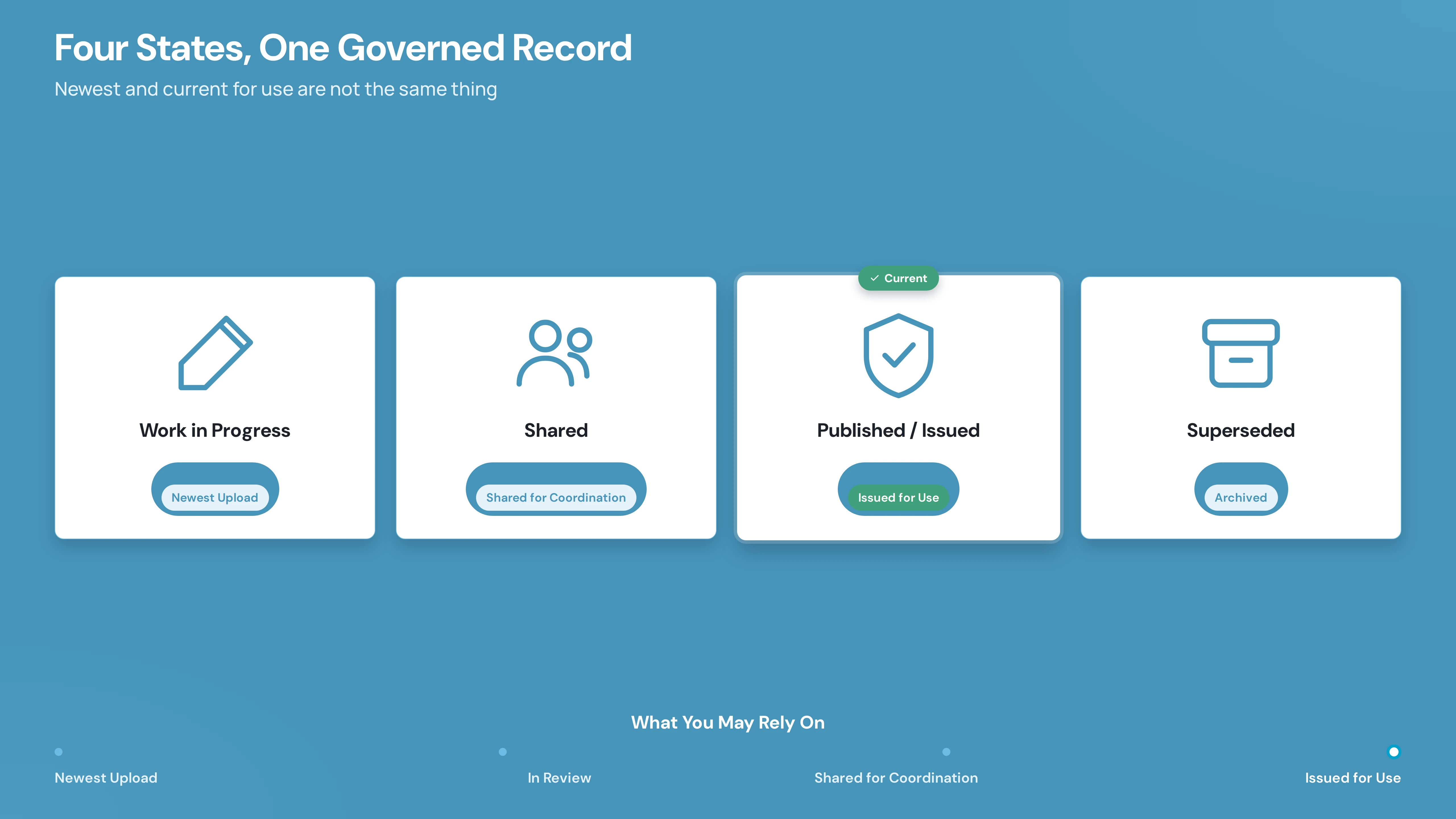
Version control works when the system records document history and the workflow identifies which state users may rely on. "Newest" and "current for use" can mean different things. A recently uploaded drawing may still be in review, while an earlier formally issued revision remains the applicable field record.
Define each state in the project procedure. A typical model may include:
- Work in progress: Editable information controlled by the originating team.
- Shared: Information available for coordination, comment, or another stated purpose.
- Published or issued: Information authorized and distributed for a defined use under the project's rules.
- Superseded or archived: Historical information retained for the project record but removed from active use.
When a drawing changes, update the register, complete the required review, issue the new revision via a transmittal, and remove the replaced revision from the current view. Retain the superseded file only where the contract, quality plan, claims process, or retention policy requires it.
CUBE keeps two records side by side. A new version is created automatically every time a file is updated, and your team marks the versions that matter with a formal revision (A, B, C or 01, 02, 03), validated against a revision series configured in Portal Settings with a start pattern, sequence rules and default behaviors.
Once configured, you can set it as the default so it applies to all files and folders portal-wide, or select a revision series at the folder. The Revision metadata field is version-specific and shows a log of all revisions added by users. You can view all previous versions with timestamps and the user who uploaded each one, and download any specific version. You can also add notes to specific versions visible to every user in the Space.
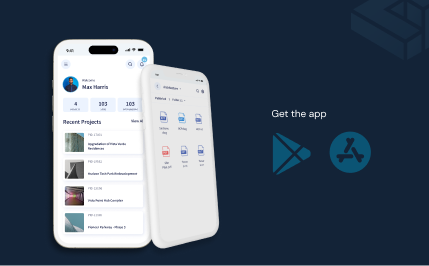
From CUBE's PDF viewer, you can insert an auto-generated QR code onto a drawing before issuing it. The code carries the project, Space, file name, and version details, and crews can scan a printed sheet with the CUBE mobile app to check whether it is still the latest version before work begins.
Common Mistakes to Avoid
- Treating the project as a file-copy exercise instead of redesigning the document-control workflow.
- Migrating duplicates without deciding which revision is authoritative.
- Using folder names as the only signal of document status.
- Giving external parties broad access to the project for convenience.
- Allowing approvals to continue in email after the CDE review process is active.
- Issuing new revisions without moving replaced files out of active use.
- Leaving legacy folders writable after the cutover date.
- Ignoring mobile downloads, cached files, printed sets, and screenshots.
- Waiting until handover to decide what must be retained as the project record.
How to Migrate a Live Project Without Disrupting Delivery
Prioritize continuity. Move the documents needed for active work, upcoming procurement, and near-term approvals before transferring the full archive.
Use a phased migration:
- Prepare: Inventory information, resolve obvious conflicts, define ownership, and configure the CDE.
- Pilot: Test one package or discipline with representative office, field, consultant, and subcontractor users.
- Move current records: Transfer active drawings, RFIs, submittals, specifications, and registers with validated metadata.
- Cut over: Make the CDE the record source and require links or transmittals for controlled distribution.
- Stabilize: Monitor attachment use, permission problems, missing records, and user questions.
- Complete the archive: Migrate or retain historical material according to the agreed retention and handover plan.
Run a sample verification after migration. Select documents from several disciplines and compare the CDE revision, status, issue date, approval record, and transmittal against the pre-migration register. Record discrepancies and correct them before the related information is used.
A Practical Cutover Checklist
Use this checklist before declaring the CDE the active record source:
- The current document register has been validated.
- Record ownership is assigned by document type.
- Statuses and their permitted uses are documented.
- Naming and metadata rules are configured.
- Permission groups have been tested with real user scenarios.
- Review and approval routes reflect the project's authority matrix.
- Transmittal templates and distribution lists are ready.
- Current drawings, models, RFIs, submittals, and specifications are loaded.
- Superseded information is separated from the current working view.
- Legacy folders are read-only or clearly designated as historical.
- Email attachment rules and the cutover date have been communicated.
- Field users can reach and verify current information from their devices.
- Exceptions have an owner, escalation route, and resolution deadline.
- Retention, closeout, and handover requirements are recorded.
Set Up Controlled Document Sharing in CUBE
Replacing email and shared drives gives your team a clear operating rule: current project information comes from the governed environment, and every formal revision follows the defined review, issue, and supersession process.
With CUBE, you can centralize documents in one governed repository with nested folder structures, track revisions through configurable revision series, route approvals through Review workflows with transition diagrams, and more.
The platform supports 60+ browser-viewable formats, including BIM (RVT, IFC, NWD, OBJ), CAD (DWG), PDF, spreadsheets, images, and documents, for teams to open files without specialized software. Free Guest and Field seats extend access to subcontractors and site teams without adding per-user cost.
Suggested Read: Unlocking the potential of BIM for contractors
Review CUBE against your project's required statuses, authority matrix, external-access rules, retention policy, and field workflows. When you are ready to evaluate the process, Sign Up.
Frequently Asked Questions
1. What Is the Best Way to Share Construction Documents Without Email?
Use a governed CDE as the source of record for construction documents. Store the current document and its revision history together, control access by role, route reviews through defined workflows, and distribute formal issues through transmittals. Email can notify recipients and carry discussion, but links should direct users to the controlled record.
2. Can Shared Drives Replace Email Attachments for Project Document Sharing?
Shared drives reduce attachment duplication, but they do not automatically provide document control. A project still needs clear status rules, revision history, approval routes, formal distribution records, permissions, supersession controls, and a structured handover record. A generic drive can support parts of that process only if the project adds and consistently enforces those controls.
3. How Do You Control Versions and Permissions for Construction Documents?
Record each document's revision, status, purpose, owner, and issue history in the controlled environment. Define who can upload, revise, review, approve, issue, view, or archive information. Scope external access to the relevant project and work package, then remove or expire that access when it is no longer required.
4. Can We Give Subcontractors Access Without Exposing Everything?
Yes. Use project-scoped, package-based permissions. A subcontractor may be allowed to view the current information for its scope and upload defined submissions while remaining unable to see unrelated packages, approve documents, issue records, or administer the project. Test those permissions before inviting the full team.
6. What Should Stay in Email, If Anything?
Keep routine notifications, meeting coordination, and informal discussion in email when that suits the team. Decisions, approvals, formal issues, and record copies should be captured in the CDE or linked project workflow when an email affects the project record, file, or connect it according to the project's correspondence procedure.
.png)
.png)